User Guide
Everything your group needs — from first sign-in to Saturday standings. Your group's organizer sends you an invite link, and you're in.
Quick start Sign-in & notifications Signing up to play Guests, matches & pairings Teams, scores & money Running your club The weekly loop Rainouts & fixes
Quick start MEMBERS
Your whole first day, in five steps:
- Tap the invite link your admin sent — or, if you only have the club code, open the app and enter it in the club code box at the bottom of the sign-in screen (also on the home page). Sign in with Phone + PIN (enter your number, pick a PIN) or Email. If your admin already added you, tap your name on “Which one is you?”. One account works in every club you join.
- Set your handicap: tap your initials (top-right) → My profile → handicap + your usual tee. Without a handicap you can't be placed on teams — you'll show a red ⚠ flag until it's set.
- Set up a passkey when the app offers — one tap + fingerprint, and you never type that password again.
- Turn on notifications (your initials, top-right → My profile → Notifications) so your phone buzzes when teams go up.
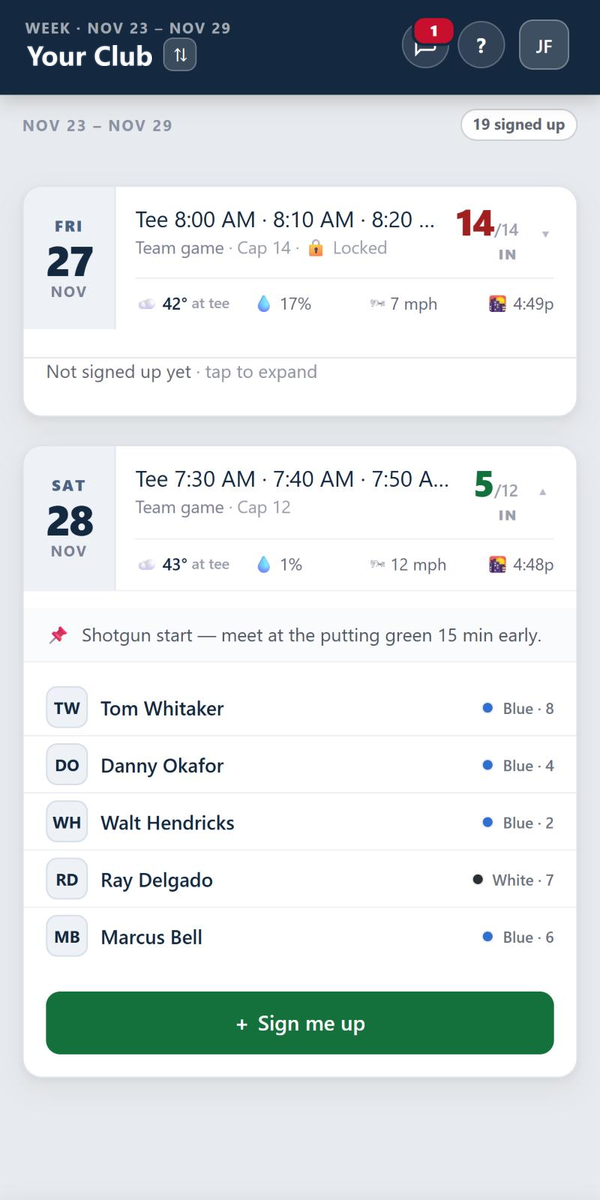
- Sign up for a day on the Week tab. That's it — you're playing.
Finding your way around: the bottom bar is Week · Teams · Score · Money · More (More has History, Stats, the Clubhouse and admin tools), and it slides away while you scroll. Top-right: the 💬 Clubhouse icon (a red number = new posts, gold @ = you were mentioned), Help (a ? on phones) and your initials. Tap your initials for My profile & notifications, Switch club and Sign out. In more than one club? The club name at the top has a small ⇅ button — tap it and pick a club from the pop-up.
Sign-in & notifications MEMBERS
One-tap passkey sign-in
After your first password login, the app offers to set up a passkey. Accept, confirm with your fingerprint or face, and from then on signing in is a single tap of 🔑 Sign in with a passkey. Passkeys are per-device — set one up on each phone or computer you use. It's always available under your initials (top-right) → My profile → Passkey sign-in. Your password keeps working as a fallback.
Add MarkMeIn to your phone
MarkMeIn runs in your browser, but adding it to your home screen makes it open like a real app — full screen, one tap. On iPhone it's also required before notifications will work.
- iPhone (use Safari): open your club's link in Safari, tap the Share button (the square with an up-arrow), scroll down, and tap Add to Home Screen → Add. If your link opened somewhere other than Safari, tap the share arrow and choose Open in Safari first — "Add to Home Screen" only exists in Safari.
- Android (use Chrome): open the link in Chrome, tap the ⋮ menu (top-right), then Add to Home screen (some phones say Install app) → Add. You may also see an Install banner — tapping it does the same thing.
- Desktop: just open the app in Chrome or Edge — on a wide window the tabs move to a menu down the left side, the Week tab adds an at-a-glance panel (days, tee times, weather, who's in, notes, latest Clubhouse posts), and scoring shows the money beside the score grid. Click the install icon in the address bar to keep it as an app.
Notifications
Tap your initials (top-right) → My profile → Notifications → Turn on, allow the prompt, done. You'll get a ping when: ⛳ teams are published · 💰 results are posted · 🎉 a waitlist spot opens · 📣 an announcement drops · 💬 someone @mentions you in the Clubhouse. Opt-in, per-device, off any time.
Signing up to play MEMBERS
- Open the Week tab — each playing day shows its date, tee time, and who's in so far.
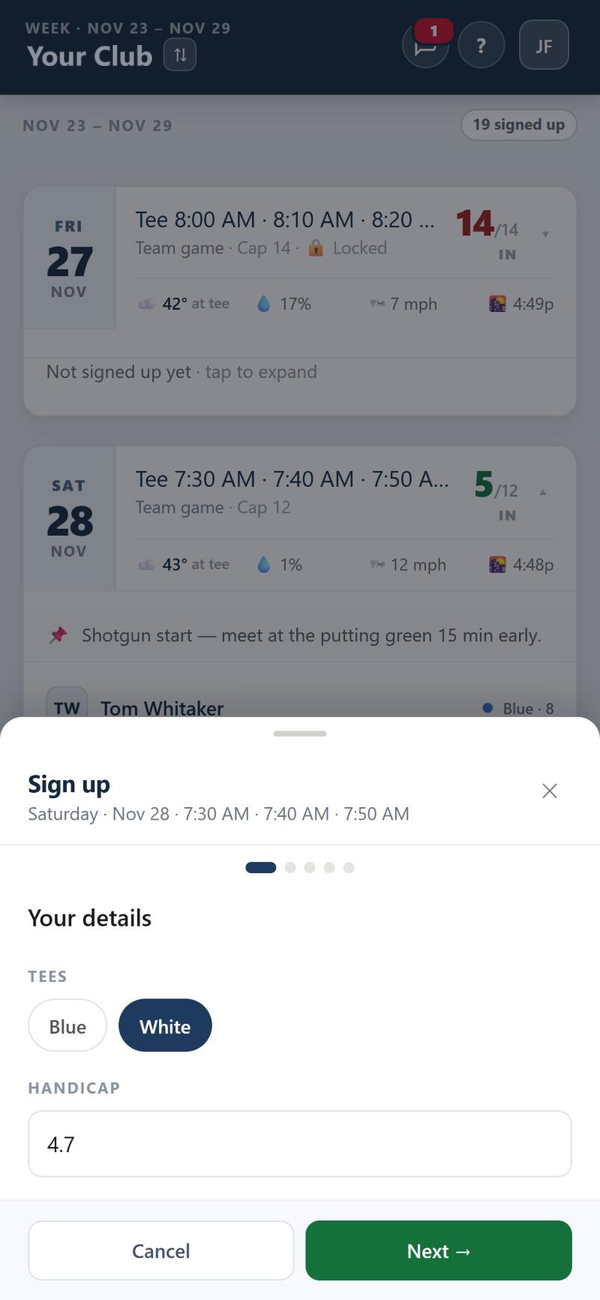
- Tap Mark me in on your day and walk the short steps: confirm your handicap and tee, add a guest if you're bringing one, request a pairing or match if you want one.
- Change of plans? Reopen your sign-up to edit it, or remove yourself — if teams are already set or the day is locked, the admin gets an alert so nobody's left guessing.
Full day? Join the waitlist — you'll see your position, and if notifications are on, you're pinged the moment a spot opens.
Tee preference: during sign-up you can request the first or last tee time. It's a request — the admin approves it, and the team builder honors it without splitting up any pairings.
Guests, matches & pairings MEMBERS
Bring a guest
During sign-up, add your guest's name, handicap, and tee. Guests need a quick admin approval; once approved they're automatically kept on your team.
Pairing vs. match — know the difference
- 🔗 Pairing — "put us on the same team." Friendly, honored when it fits.
- ⚔️ Match — "same team, and there's something riding on it." Matches are the team builder's top priority — never broken to balance handicaps.
Both need the other player to be signed up, and both need admin approval. If someone requests you, you'll see it on the day and can accept or pass.
Teams, scores & money MEMBERS
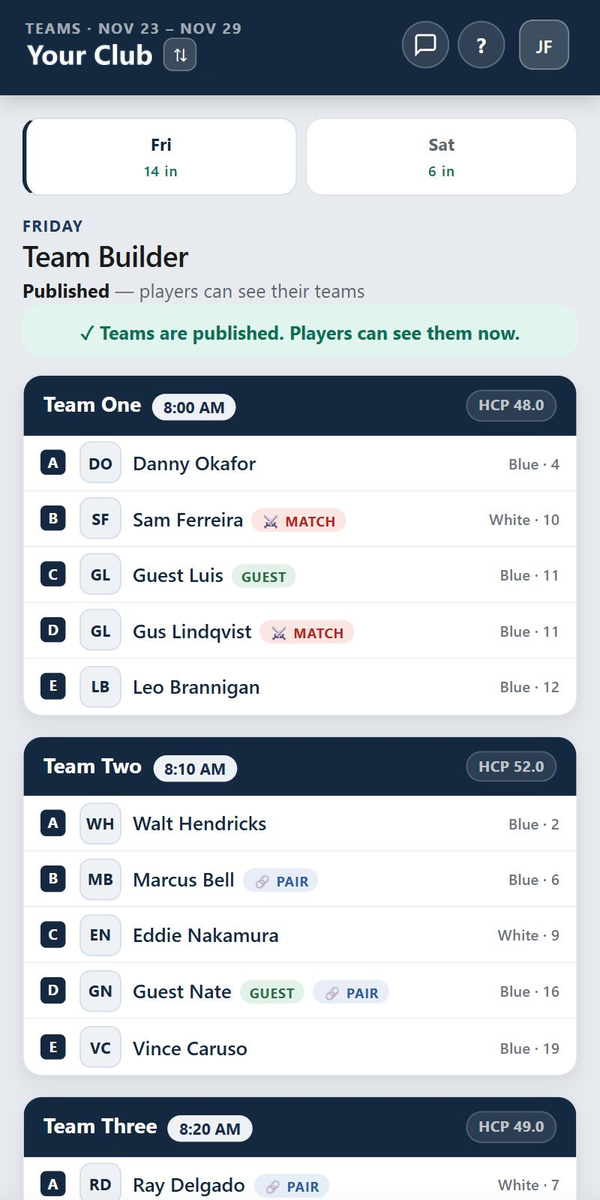
Teams: when the admin publishes, your phone buzzes — the Teams tab shows your group, your teammates, and the tee order. If a pairing couldn't fit, a note on the sheet says so — no mysteries.
Live scores: the Score tab shows the scoreboard as the scorer enters it — a grid with one row per team and one column per pot, skins as they land, and the payout preview.
Your money: after results post, tap 💰 My winnings on any round for your exact share, line by line. The Money tab tracks the season — won, paid, net. The Season dropdown on History, Money and Stats shows the current season, any archived season (read-only) or all-time. The app is a scorekeeper: it does the math, your group settles up in person like always.
History & Stats: every finished round lives in History (teams, scoreboard, payouts, searchable). Stats shows who's hot and who's due — streaks, scoring, pots and who plays with who. Admin and login activity stay admin-only (Admin → Stats chooses what members see). Tap any set of initials anywhere to open that player's card.
The Clubhouse
The Clubhouse tab is your club's message board — only members of your club can see it. Post, @mention someone (they get a push), react, reply, and edit or delete your own posts. Links are tappable. Admins can freeze or clear the board.
Weather
Once your admin sets the course location, each playing day shows the forecast at tee time — temperature, rain chance, wind and sunset — right on the Week card.
Running your club ADMINS
Admins get two extra tabs: Setup for the weekly work, and Admin for one-time settings.
Setup once (Admin tab)
- Create your club — name, tees, your name as owner. You get an invite link; share it in your group text (there's a prewritten invite email ready to send). Optionally paste your group into the roster first so people just tap their name when they join.
- Sign-ups: the days your group plays, tee options, guest rules, join approval on/off.
- Games & Pots: buy-in, pot categories and payouts, skins style (team or individual, from the buy-in or separate) — or switch on no-money mode for a casual group.
- Roles: promote trusted members to Admin (full control) or Scorer (can run scoring). Changes take effect live — mid-round handoffs just work.
- Announcements: post a note to the whole club anytime — it shows as a banner, and with Also send as a push notification ticked (the default) it buzzes everyone with notifications on.
The roster
Approve pending joiners, edit handicaps (decimals and plus handicaps like +2 both work), Suspend someone who's caused a problem (they can't see or use the club until you restore them; history and money stay). Load your group with Paste a list (one name per line, phone or email optional), then share your invite link — people are matched to their name when they sign up, or tap “That's me”. Copy [name]'s invite sends a nudge; Merge into… fixes anyone who joined as new by mistake. Duplicate names are blocked automatically with an "add a last initial" prompt, because two John Smiths on one sheet breaks everything.
Remove moves a player to Deleted players at the bottom of the roster, where Restore brings them back (a restored entry comes back as “Not signed up yet” — they sign in from your link and tap their name). Each player can carry a second email, and course or pro-shop contacts can be tagged Staff so they're left out of member emails. The copy-emails block offers All members, Registered or Staff.
Seasons: under Admin → Season, set the season's name, start date and end date. When it's over, End season & start the next (same place) copies every round through the end date into a permanent archive, checks the copy, and only then removes them from the live board. Rounds played after the end date carry into the new season. Name the next season, pick its dates, type ARCHIVE to confirm.
The weekly loop ADMINS
- Set up the week (Setup tab): tap ✦ Set up this week — pick the days, set the game and tee times (same for every day, or per day), caps and notes, review, save. Two minutes, with an optional "sign-ups are open" push at the end. Same tee time every day? Pick Same every day and set it once. Come back any time via Set up the whole week; each day's own panel is for one-off tweaks.
- Sign-ups roll in — watch the lists fill. Approve guests and pairing/match/tee requests as they arrive (each is an explicit approve/deny — nothing happens silently).
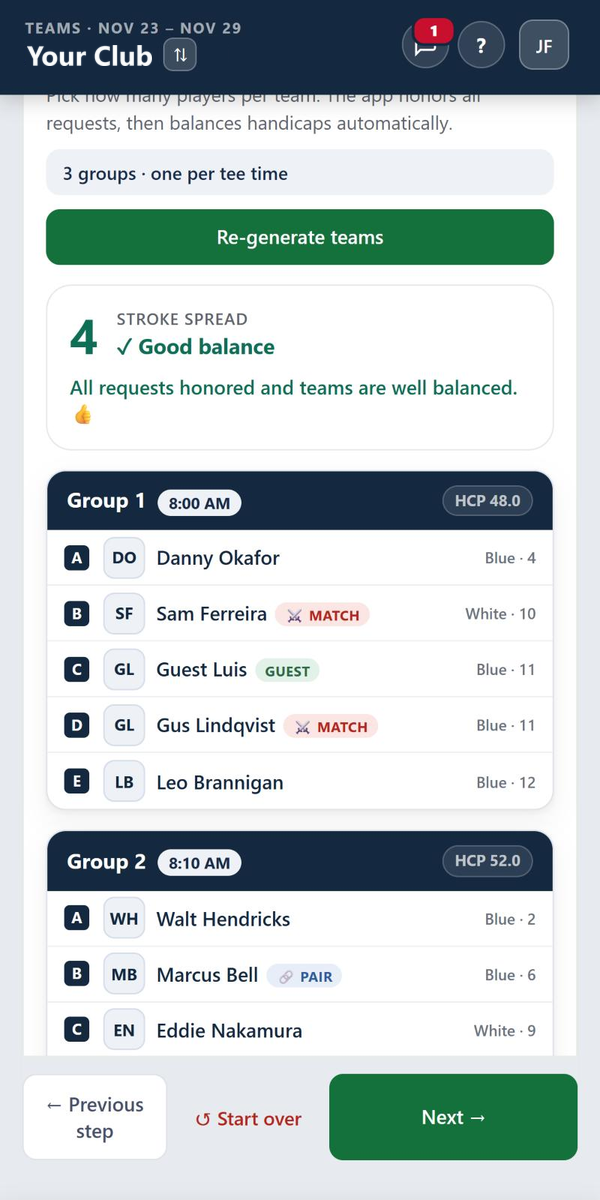
- Build teams: the wizard walks you through — review requests, generate balanced teams (matches → guests → pairings honored in that order, then a handicap snake draft that also avoids repeating last week's groupings), drag anyone to fine-tune, use the Balance suggestion if the spread bugs you.
- Publish — every signed-up phone buzzes ⛳ teams are up. If any request couldn't be honored, you were shown exactly why before publishing, and players see a note on the sheet.
- Score it: set up the day's pots (the app enforces money-in = money-out), enter scores in the grid (one row per team, one column per pot), publish so the group can watch, then Finish & push to History — results ping the players, standings update themselves.
Rainouts & fixing mistakes ADMINS
🌧 Rainout: in Setup, open the day and tap ☂ Cancel — clears sign-ups, teams, tee time, cap, and waitlist, records nothing (no History entry, no money), logs the day as cancelled, and the week moves on. Remove is the quieter cousin: it just takes a day off the week when there's no game.
↩ Wrong score discovered later: open the round in History → Reopen round. It returns to the current week; fix scores, skins, or teams with the normal tools, then push it back — it updates the same History entry (no duplicates) and every standings number recalculates. Changed your mind? Cancel edit on the Score tab keeps the History version untouched.
Deleted a round by mistake? Deleted rounds go to a Trash at the bottom of History — restore them anytime.
Still stuck?
The in-app guide (tap Help at the top — a ? on phones) covers everything here with pictures of each screen. Or email markmeingolf@gmail.com — a human reads it.